

Inicio Blog Página 3450

Improve The Deployment Of WordPress Websites

0

To Improve The Deployment Of WordPress Websites As WordPress matures into a full-fledged CMS and more and morelarge online publishers come to rely on the platform, the practice of developing and deploying websites becomes increasingly important. High-profile members of the WordPress community, such as core developer Mark Jaquith and Cristi Burca, have spoken on the topic and built tools such as WP-CLI and WP Stack to improve the professionalism of our administration and deployment.

But what I’m really interested in is the current state of WordPress deployment: how an average developer manages the deployment of their websites, and how can we improve as a community?

In late July 2012, I conducted a short survey to help me answer these questions. The survey was open for three months and drew a modest but not insignificant 327 respondents. This article documents the results of the survey and draws some conclusions about where education is needed and how we can help each other become more professional when deploying our WordPress websites.

The Demographic

In my survey, I asked a few questions to establish the demographic that’s working with WordPress; this was obviously already done in far greater detail with the WordPress user and developer survey, but I felt that getting a sense of who was responding to this survey was important. Of the 327 respondents, 43% self-identified as developers, 10% as designers, 40% as both designers and developers and 7% other.

The vast majority were located in the North America (50%) and Europe (38%), with the following continents also registering: Asia (6%), Australia (4%), Africa (3%) and South America (1%). I also asked respondents how they would categorize the businesses they work for. Here’s how they responded:

biz-type

The results were overwhelmingly in favor of freelancing (46%), with small businesses (19%) and small agencies (17%) taking a close second and third place, respectively. These figures back up accepted knowledge that WordPress is largely used by small internal Web teams, regional Web agencies and freelancers. Finally, as with the WordPress user and developer survey, I asked respondents whether they made their living from WordPress. This was relatively evenly split, with a small majority of 59% saying yes.

That said, of those who identified themselves as developers, 67% said they earn their living from WordPress, which suggests that WordPress developers are generally more inclined to stick with one platform than designers, who are perhaps more agonistic.

Deployment Practices

Now we get to the meat of the survey, how respondents actually deploy their WordPress websites. Combined, the 327 respondents maintain 6,378.5 WordPress websites — yes, someone maintains half a WordPress website. The majority of respondents manage a fairly small number of websites, with 46% looking after fewer than 10. That said, an impressive 8% manage between 30 and 40 websites, and, incredibly, one person is responsible for 700. Below is a breakdown of the numbers.

WEBSITES MAINTAINED BY SURVEY RESPONDENTS

Number of websites Number of respondents
Fewer than 10 149
10 – 20 109
20 – 30 26
50 – 100 7
100 – 200 4
200 – 500 1
500 – 1000 1

VERSION CONTROL

I asked all respondents whether they use version control and, if so, which software they favor. Astonishingly (at least to me), 45% of respondents said they do not use version-control software at all as part of their workflow. Of the remaining 55%, Git was by far the most popular, taking 41% of the vote, and Subversion surprisingly accounted for only 9%. Drilling down a little deeper, 28% of those who identify themselves as a developer stated that they do not use version control, and 48% of those who are both developers and designers said the same. Here’s a breakdown of overall responses on version-control software:

version-control

Next, I asked respondents what method of deploying websites they favor. These I broke down into FTP, SFTP, SCP, SSH + version control, SSH + version control + Capistrano, and other. Again, somewhat shocking for me was to find that FTP took 49% of the vote, followed by SFTP (20%) and SSH + version control (17%). My preferred method, SSH + version control + Capistrano, got only 3% of the vote; but even with so low a number, I was pretty encouraged to hear that people out there take the time to work in this manner.

ENVIRONMENTS

I asked respondents whether they maintain different environments for their WordPress websites — that is, whether they set up local, test, staging and live environments. Answering yes didn’t require that they run all of these environments, but simply that they differentiate between the website they develop on, the website on which they show changes to a client and the live website. The vast majority of respondents (75%) indeed do this, which is great news.

An important facet and constant pain point of running multiple environments is the need to alter URLs in the WordPress database when migrating the database from one environment to another. I asked respondents how they typically deal with this problem and gave them an open field to type their answer. Here are some answers that came up repeatedly. These aren’t actual responses, but rather my representation of groups of similar replies.

“I don’t migrate between staging and live databases.”

“I don’t touch the database. I just export and import posts out of and into WordPress.”

“I use Dave Coveney’s PHP script for finding and replacing URLs in the database, including those in serialized data.”

“I do a find-and-replace on the SQL dump and the website’s files.”

“It’s a massive pain in the arse, and I steer clear of it.”

“I dunno. What is the best practice on this?”

COWBOY CODING

Finally, to gauge how strictly people adhere to general best practices, I asked respondents whether they ever cheekily edit code on the live server. Let’s be honest: this question is only ever going to yield one outcome. As expected, a whopping 76% owned up to having tweaked some WordPress production code in their time.

What We’ve Learned

In reviewing the lessons learned, it’s important to say up front that I am not criticizing the development and deployment practices of the survey’s respondents. The goal was to identify the areas where we, as a community, can become more professional and to draw some conclusions on how we might achieve that. You’ll find no finger-wagging or hyper-critical feedback for developers — just broad conclusions drawn from the responses.

VERSION CONTROL

First, clearly not enough of us are using version control in our everyday workflow. This is a fundamental tool for any developer, and for 61% of those who self-identify as a developer or as both a designer and developer to say that they don’t use version control indicates that effort is needed in the WordPress community to educate developers on the importance of source-control management.

Still, while not enough WordPress developers use version control, that so many who do use Git is very positive. I prefer the decentralized approach of Git, and while WordPress’ core team still uses (and will likely continue to use) Subversion, Git brings many benefits. Suppose a few teams are working on a project. Each team could write to its own repository, and then a senior member of the quality-assurance team or an administrator could merge changes from all of those repositories into a protected repository before deploying the website. This approach makes a lot of sense if the website you’re working on is large and members of your team are dispersed, and it’s why I favor Git.

ENVIRONMENTS

While a lot has been done to grapple with the issues arising from WordPress storing URLs in the database, the problem goes beyond WordPress’ core and extends to plugins and even to the pesky URLs ending up in serialized data. This is a pain in the arse at best, and a complete time-suck at worst. There are many options for overcoming this, but the most common choice is either not to migrate data from environment to environment at all or to use Dave Coveney’s PHP script. Both have their problems. For me, the first just isn’t viable, and the second, while perfectly acceptable, isn’t automated enough and is pretty time-consuming. There has to be a better option.

Free and premium tools and plugins offer solutions to this problem. One that came up a lot in the survey’s results was BackupBuddy and its migration feature. I’ve played around with its functionality, and, while it works perfectly well, it does not (as yet) work with Multisite, and I actually found the process more arduous than using a find-and-replace script. One project of mine that has emerged from this survey is to automate the find-and-replace process with a tool for Capistrano.

from :http://www.smashingmagazine.com/2013/04/15/wordpress-deployment-survey/

[quote font=»verdana» font_size=»14″ font_style=»italic» color=»#474747″ bgcolor=»#F5F5F5″ bcolor=»#dd9933″ arrow=»yes» align=»centre»]This Demo Content Brought to you by Momizat Team [/quote]

this is tags and keywords : wordpress themes momizat Tutorial wordpress templates

Create A Tab Widget In WordPress

0

In this WordPress tutorial, you’ll learn how to create the Tabber widget, which is very useful for when multiple widgets need to fit in a sidebar. It saves space and streamlines the appearance and functionality of your WordPress-powered website.

In the past, there were different methods of doing this, most of which were theme-dependent. As we’ll see in this tutorial, creating a tabbed widget that works on its own and with any theme is easily accomplished. So, let’s jump in and learn how to create our own Tabber widget, which we’ve made available for downloading at the end of this article.

create-tabber-widget-splash

Saving Sidebar Space

The main advantage of tabs is that you can fit more widgets into the sidebar. And tabs look good. The image below shows how much vertical space is taken up by three standard widgets (using the default Twenty Ten theme). The default layout is on the left, and our tabber widget is on the right:

tabber_example

Before We Start

A few things are useful to know. Because we are building a widget in this article, you might want to learn about WordPress’ Widgets API and how to create a basic widget:

Use these resources as needed while following the tutorial along.

The Basic Idea

The idea for this widget is simple: select a sidebar, and the Tabber widget will grab all of its widgets and display them as tabs. In the widget’s interface, you can select a sidebar, specify an extra CSS class and optionally apply your own styles. When enabled, the plugin will register an extra sidebar (which may be removed if you have other ways to add a sidebar). Then, using the same code, you can add more sidebars, and each of them can hold instances of the Tabber widget.

To control your widgets, Tabber uses idTabs for jQuery, created by Sean Catchpole, but you could always use another solution. Note that additional CSS is loaded to style the resulting widget.

So, the goal with Tabber is to transform any widget’s output into markup that can be used to display tabs

tags for this. Other themes may use complicated markup that can’t be predicted or successfully transformed into the output needed for tabs.

The solution to this problem is to intercept the widget’s parameters before rendering, and then to restructure them into useful structures using JavaScript or jQuery for the tabbed output. More on that later.

action. We register the widget on line 17.

Widget Interface
Widget interface.

The Main Tabber Widget Class

Tabber is a normal widget, and in this case it is located

SETTINGS: PLUGIN INTERFACE

The widget has two settings:

  • “sidebar”
    to hold the ID of the selected sidebar
  • “css”
    for extra CSS classes to style the Tabber widget

When selecting which sidebar to use, you must avoid using the sidebar that holds the Tabber widget. Otherwise, it will spin into endless recursion. To avoid this, before rendering the widget’s content, check whether the selected sidebar is the same as the parent sidebar. This can’t be prevented while the widget is set up, because the widget’s panel affords very little control over this.

Also, using sidebars that are not normally used is a good idea. To help with this, the plugin includes sample code to help you add an extra sidebar.

This function requires the name of the sidebar, and it will display all widgets in it. Line 9 contains the check mentioned before, to prevent recursion when displaying sidebar content if the selected sidebar is the same as the parent sidebar.

Lastly, the filter is removed, and any widgets belonging to other sidebars are displayed normally, without modification.

WIDGET MODIFICATION

To prepare for the transformation done with JavaScript, the tabber widget includes the

tag for the control tabs. After this filter, the widget’s output will look like this:

JavaScript For Widget Transformation

Once the widget’s presentation is modified, one thing remains: to complete the transformation and get the titles from the widgets and turn them into tabs:This code uses jQuery to get all of the Tabber widgets based on the

  • will hold only its content.

Final Tabber Example
Final Tabber example.

Finally, when all this is done, we enable idTabs to activate the tabs control. And with the default styling loaded from the

How To Install The Tabber Plugin

As with any other plugin, unpack it, upload it to WordPress’ plugins folder, and activate it from the plugins panel. When you go to the “Widgets” panel, you will see an additional sidebar, “Tabber Example Sidebar,” at the end on the right. And “Available Widgets” will show one more widget, “D4P Smashing Tabber.”

Add this new widget to the “Main Sidebar.” From the “Sidebar” widget drop-down menu, select “Tabber Example Sidebar,” and save the widget. Now, open the “Tabber Example Sidebar” and add the widgets you want to be displayed as tabs. You can add as many widgets as you want, but pay attention because if you add too many, the tab’s control will break to two or more lines, and it will not look pretty. Starting with two or three widgets is best.

Conclusion

Creating one widget to display several other widgets as a tab isn’t very difficult, as you can see. The trick is in adjusting the widgets’ output to a format that can be transformed into tabs, and then using JavaScript to display them. We’ve explored just one possible transformation method; you can always experiment with ways to rearrange widget elements.

We used idTabs here, but there are many methods of displaying tabs, and not all of them require JavaScript:

I prefer using a jQuery-based solution, and idTabs is very easy to use and easy to style and it works in all browsers. Check out other solutions, and see what extra features they offer to enhance your own tabbed widgets.


from : http://www.smashingmagazine.com/2014/08/27/a-tour-of-wordpress-4-0/

[quote font=»verdana» font_size=»14″ font_style=»italic» color=»#474747″ bgcolor=»#F5F5F5″ bcolor=»#dd9933″ arrow=»yes» align=»centre»]This Demo Content Brought to you by Momizat Team [/quote]

this is tags and keywords : wordpress themes momizat Tutorial wordpress templates

Practical Tips From Top WordPress Pros

0

Practical Tips From Top WordPress Pros Recently I shared with you some advice from the WordPress community to beginners. But what if starting out is already a dim memory? What if you’re already so immersed in the world of WordPress that you dream of Trac and you bore your partner with talk of your latest achievement with custom post types?

Below are some tips from WordPress pros from across the community. Many of the tips cover development, but there’s also advice on business, running your website and, of course, getting involved with the community.

Wordpress-start-image
Image: Phil Oakley

Tips For Developers

USE EVERYTHING WORDPRESS HAS TO OFFER

WordPress’ core can do a lot for you, without you having to write a bunch of code. WordPress is much more powerful when you make use of its APIs and built-in functionality. “If you use WordPress as your framework,” says Trent Lapinski, “it will enable you to focus on developing an innovative plugin or theme.”

Matty Cohen recommends always looking for and using functionality available within WordPress before creating a function from scratch. “Examples of this include, at the higher level, using the WordPress Settings API and, at the lower level, using themedia_handle_upload() function to upload your files, rather than a custom upload routine.” Matty gives an example of this with his WooSlider plugin. In order to create a familiar and consistent experience for WooThemes users, he did the following:

  • He used the Settings API for the settings screen.
  • He added a tab to the “Upload/Insert Media” popup for creating shortcodes. This interface uses a combination of the Settings API, custom form-creation logic, and some custom JavaScript to create the HTML output and the shortcode.

Screenshot of WooSlider settings
WooSlider uses built-in WordPress functionality to make the user experience better.

Making use of everything WordPress has to offer results in less coding for you and a better overall experience for users. But those aren’t the only benefits. Amy Hendrix points out that the code you write will be future-proof. Writing your own scripts could eventually result in conflicts.

USE HOOKS

Hooks are the means by which you hook into WordPress and add your own code without modifying core files. There are two types of hooks: actions and filters. Action hooks are places where you can insert and run code. Filters are used to manipulate output.

If you’re working with WordPress’ core and with plugins and themes, then you should be extending by making use of all of the hooks available. Adam Brown maintains a list of all of the hooks that have ever appeared in WordPress.

IMPLEMENT HOOKS

Create your own hooks. By implementing hooks in your plugins and themes, you create opportunities for other people to extend them and create add-ons. Shane Pearlmanbelieves that by doing so, you “encourage plugin developers to make opportunities for the community to extend and also use them.”

Not only does this create opportunities for other developers, but you make life easier for yourself. “With a ‘well-hooked’ theme or plugin,” says Simon Wheatley, “you can make adjustments between clients, or between sites on a multisite setup, a lot more easily than by effectively forking your own code for every scenario.”

WRITE SECURE CODE

If you write plugins or themes, keeping the code secure is critical. How bad would you feel if your code was responsible for websites getting hacked? Brad Williamsrecommends learning how data validation pertains to WordPress. A detailed page on data validation can be found in the Codex; so, if you’re a developer, you have no excuse for writing insecure WordPress plugins and themes. Following the guidelines will ensure that your code is safe and secure from exploits and hacks. As Ryan Hellyer points out, “Having a beautiful website which does exactly what a client requires is great, but it’s not so great when it gets injected with spam links and is de-indexed from search engines!”

FOLLOW BEST PRACTICES

Ryan Duff and Brad Williams highlight some best practices that developers should stick to:

  • Make sure the data that you’re passing is always being passed in the way it’s expected to. Setting a variable on an incorrect line could result in a trickle-down effect of error messages.
  • WordPress has coding standards, so stick to them. This will keep your code in a format that all WordPress developers will recognize, making bug tracking much easier!

EMBRACE THE CODE BASE

Both Helen Hou-Sandi and Jake Goldman of 10up recommend that you spend time looking at the code base. As Jake points out, “Relying on the Codex and Google searches for solving unique problems with WordPress is like trying to tune a car’s performance without ever looking under the hood.” Rachel Baker also suggests looking at the change logs, and Silviu-Cristian Burc? points us to his advice in “How to Become a WordPress Guru.”

A good integrated development environment (IDE) for PHP — such as NetBeans, PhpStorm, phpDesigner or Vanilla Eclipse — will offer code auto-completion for WordPress functions and their arguments and will display documentation on functions inline. You’ll be able to easily jump to function and class declarations to study them. “Think the core code base is too scary?” asks Jake. “Pick a file in wp-includes and start reading — you might be surprised by how approachable it is, and how much you can learn.”

Looking at the code, as Helen adds, also increases the likelihood that you’ll find a way to contribute code to the WordPress project. You’ll also become familiar with plugins and themes, understand how people do things properly, and recognize when they get it wrong.

SHARE YOUR CODE

It’s in the nature of code in an open-source project to be shared, forked and iterated on. If you’re working on solutions, then share them with the community. “Share and publish your solutions, as a plugin, widget or theme,” says Cátia Kitahara. “Not for every project, but with most of them, we end up with a solution that could be of use to many others. So, do it as a way of giving back to the community. I know it takes time to prepare something to be distributed through the repositories, but remember the time WordPress saves for us!”

You could put your code on GitHub, which Ben Balter recommends:

“GitHub’s got a very different culture, and the ability for anyone to submit a pull request is a real game changer. It really lowers the barrier to contribute, and democratizes the entire plugin authoring experience. As a bonus, use GitHub’s built-in wiki functionality to maintain your plugin’s documentation (especially FAQ), so that anyone, even non-technical users, can contribute.

Lastly, if you have plugin tests, integrate with Travis CI so that you can automatically test pull requests before merging. To help you get started, a handful of tools are out there, such as GitHub ? WordPress.org deployment scripts and GitHub wiki ? WordPress readme converters.”

Eric Mann points out that if you’ve built your project in isolation, then you’re likely missing out on different approaches. Sharing your code with people gives them the opportunity to point out how it can be improved. WordPress itself is built collaboratively and is the result of hundreds of minds looking at it from different perspectives. If you want your code to excel, you should be sharing it, too.

USE CUSTOM POST TYPES

Taking advantage of custom post types for specific use cases is a great way to leverage WordPress. At the Theme Foundry, Drew Strojny has three custom post types: themes, stories and tutorials. This enables members of his team to quickly find and create content.

Drew recommends making custom post types even more flexible by adding custom meta data. This enables you to style your content and provides opportunities to reuse that meta data across your website. He provides the example of the meta data he uses with the “Story” post type in use on his “Customer Stories” page.

from : http://www.smashingmagazine.com/2013/03/20/practical-tips-top-wordpress-pros/

[quote font=»verdana» font_size=»14″ font_style=»italic» color=»#474747″ bgcolor=»#F5F5F5″ bcolor=»#dd9933″ arrow=»yes» align=»centre»]This Demo Content Brought to you by Momizat Team [/quote]

this is tags and keywords : wordpress themes momizat Tutorial wordpress templates

Google Two-Factor Authentication

0
Final product image
What You’ll Be Creating

Brute force login attacks targeting WordPress sites are quite common, such as in April 2013 when more than 90,000 sites were targeted. There are a handful of good ways to protect yourself against these attacks:

However, I prefer to use a two-factor authentication method that requires a code from my phone to complete the login process. Google’s Authenticator has been gaining ground as a mobile app for providing secure codes. In fact, you may already have the Google Authenticator app on your phone, as a number of web services are now integrating with it, including cloud file store provider Dropbox, cloud hosting provider Digital Ocean, and name service provider Gandi.net.

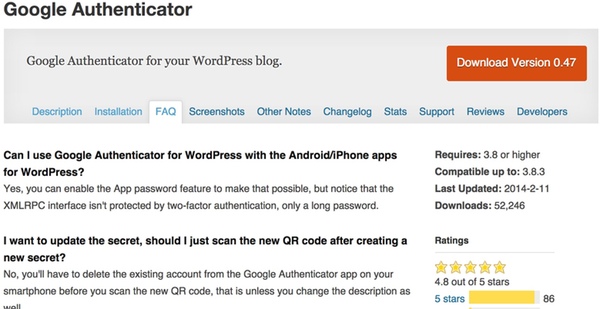
And, fortunately, there is a simple WordPress plugin by Henrik Schack that integrates with Google 2fa; it’s also called Google Authenticator. Installing and using this plugin is quite easy—and the security benefit is significant.

Google Authenticator WordPress Plugin by Henrik Schacks

This tutorial will walk you through setting up the Google Authenticator WordPress plugin for your own sites.

From your WordPress Dashboard, go to install a new plugin and search for Google Authenticator, and click Install Now:

Install the Google Authenticator Plugin

Then, click Activate Plugin:

Activate the plugin

From the dashboard, click Users > Your Profile and scroll down to the Google Authenticator settings:

Google Authenticator Plugin Settings

Click on the checkbox for Active. Modify the description so that you will recognize the site on your Google Authenticator mobile app and show the QR code.

Note that the plugin works for multiple users—and each user has the choice of enabling it for themselves.

From your mobile Google Authenticator App, click the upper right pen (for editing). Click the plus sign at the bottom for adding a site. Choose to scan the barcode and point your camera at the QR code. The process is quite fast.

Add Your WordPress Site to Mobile Google Authenticator App

Log out of your WordPress site and you should see the additional field for Google Authenticator on your login screen!

WordPress Login with Google Authenticator Two Factor Authentication

To log in, enter your username and password as usual, but visit your Google Authenticator mobile app to get the additional code for logging in. The codes are time-critical and expire every few minutes.

Retrieve your mobile authenticator code to login

Congratulations, you’ve successfully implemented two-factor authentication on your WordPress site.

In writing this tutorial, I was accidentally logged out of my site before I had registered my site with the mobile app. I couldn’t log back in—but luckily, there is a simple solution listed on the plugin support page.

I just had to log in via SSH to my server and change the name of the plugin folder temporarily. Then, I logged back into WordPress, reset the plugin folder name, added my site on my mobile app, and I was good to go.

Another way to do this is through the database using a tool such as PHPMyAdminand these queries. If you’re not self-hosting, you may need to request help from your hosting company.

I hope you’ve found this useful; now go secure your WordPress sites.

Please post any comments, corrections or additional ideas below. You can browse my other Tuts+ tutorials on my author page or follow me on Twitter @reifman.


from : http://code.tutsplus.com/tutorials/using-google-two-factor-authentication-with-wordpress–cms-22263

[quote font=»verdana» font_size=»14″ font_style=»italic» color=»#474747″ bgcolor=»#F5F5F5″ bcolor=»#dd9933″ arrow=»yes» align=»centre»]This Demo Content Brought to you by Momizat Team [/quote]

this is tags and keywords : wordpress themes momizat Tutorial wordpress templates

The Options For WordPress Theme Development

0

At the recent WordCamp Edinburgh, I took part in a panel discussion about WordPress theme development and the options available to developers when building themes. The overriding conclusion from the session was that there isn’t a one-size-fits-all answer and that the best method depends on the needs of the website and the capabilities of the developer.

But if you’re starting out building WordPress themes or want to develop a system for building them more efficiently or robustly, how do you decide which approach to take? In this article, we’ll briefly describe how WordPress themes work and then look at some of the different approaches to developing them, with tips on which approach might be most suitable for your website and circumstances.

How Does A WordPress Theme Work?

In WordPress, themes drive a website and determine what it contains, how it behaves and what it looks like. The theme is separate from the content, which is held in the database. This means you can use the same theme on more than one website, regardless of the content of the websites — which you might already be doing if you’ve downloaded themes from WordPress’ theme repository.


What To Consider When Developing A WordPress Theme?

Before deciding which approach to take to develop your theme, identify your constraints. These likely include the following:

  • Time
    How much time do you have to develop your theme, or to learn how to do it?
  • Budget
    This is related to time but also has to do with whether you can afford to pay for a premium theme or a theme framework.
  • Capability
    How familiar are you with theme development, with CSS and PHP and with how themes work? If you’re not familiar, how much do you want to learn?
  • Future-proofing
    Will your theme need to be updated in future? Will other developers be working on it in addition to you? If so, then your approach will need to be as robust as possible.
  • Repetition
    Do you see yourself developing a number of similar themes in future? If so, your approach will have to allow for code to be reused.

We’ll revisit these considerations at the end of the article and identify which development options are most suitable for various situations.

Theme Development: Your Options

A few options are available for developing your theme or themes, and investigating them before you roll your sleeves up and start coding would be worthwhile. Picking the right approach will result in a better theme, with more robust code, and it will minimize the amount of revisions you’ll have to do later. It will also help you to build the theme more efficiently.

The options we’ll look at here are:

  • Build a theme from scratch,
  • Edit (or “hack,” some might say) an existing theme,
  • Use the theme customizer to tweak an existing theme,
  • Create a child theme to make changes to an existing theme,
  • Create your own parent theme (using one of the approaches above) and child themes,
  • Use a theme framework.

1. BUILD A THEME FROM SCRATCH

This approach is the most difficult if you’re inexperienced. But if you’re a seasoned WordPress developer, it will give you the most control. It might be the most appropriate method if you’re importing HTML from an existing static website that is being upgraded to WordPress with no other changes.

However, when transferring a website to WordPress, conducting a review of it as part of the process, rather than simply copying the code across, is a good idea. If you are copying a static website, you’ll need to keep a close eye on your code to ensure that it’s clean, efficient and valid.

2. EDIT (OR HACK) AN EXISTING THEME

This is how most people start with WordPress theme development: in working on a theme that they’ve downloaded, they see that some styling isn’t quite right, so they delve into the style sheet and make some edits. Starting like this is tempting because it feels like a quick and easy way to achieve the effect you want. But there are some dangers:

  • If you ever switch themes, that update will override any changes you’ve made.
  • It’s easy to add repetitive code by adding new styles lower down in the style sheet that override styles higher up, rather than removing what you don’t need.
  • The website could end up with a lot more code than it needs.
  • If the theme isn’t well coded or commented to begin with, you could get yourself into a bigger mess and find that you have to make a lot of fixes.

However, hacking a theme can work if you go into it with your eyes open. It may be an option if the following are true:

  • The theme you’re using is well written, valid and commented (e.g., the default WP theme, Twenty Eleven);
  • The changes you’re making are so drastic that you wouldn’t need to update the original theme;
  • You understand the PHP and CSS contained in the theme and are comfortable editing, adding to and removing it without breaking the theme.

If you do decide to go down this route, keeping a backup of the original theme and commenting your code thoroughly are important. I would also advise commenting out any code that you don’t want and then testing to see what happens before deleting anything.

3. USE THE THEME CUSTOMIZER TO TWEAK AN EXISTING THEME

The theme customizer was released with WordPress 3.4. It gives you the option to customize a theme without writing any code, simply by using a WYSIWYG interface. Depending on how well the customizer is written into the theme itself, you can use it to change images, titles, colors and even the layout. Expect to see more themes with the customizer integrated into them.

Using the WordPress theme customizer with the Twenty Ten theme.

The theme customizer stores your changes in a separate file, not in the theme’s style sheet, so there will be repetitive code.

For more information, take a look at Otto on WordPress’ video tutorial or guide to integrating the theme customizer into your own themes.

4. CREATE A CHILD THEME TO MAKE CHANGES TO AN EXISTING THEME

This approach is similar to editing an existing theme, but safer. It consists of creating a brand new theme that is defined as a child of the existing theme. Where your child theme doesn’t have a particular file but the parent theme does, it will use that. Where the child theme does have a file, that file will override the equivalent in the parent. This line tells the browser to load the parent theme’s style sheet before rendering any of the styles in the current style sheet. This frees you from having to duplicate any styles in the parent theme that you want to use.

So, that’s how child themes work. But when is this the best approach? I would suggest using it in the following cases:

  • You already have a theme (to be used as the parent) that contains most of what you need for your theme;
  • You want to be able to update your parent theme (for example, when theme updates are released following a WordPress update);
  • You don’t want to get tied up in knots from hacking an existing theme;
  • You want the option to revert to the parent theme or to develop another similar theme in future (which would be a new child theme);
  • You’re developing a number of similar websites with some minor stylistic or content differences (I did this when building similar websites for a client that owned multiple companies);
  • The difference between your child and parent themes is not so huge that you need to start from scratch, or not so huge that your child theme’s code will override anything affected by updates to the parent theme.


from : http://www.smashingmagazine.com/2013/03/13/a-guide-to-wordpress-theme-options/

[quote font=»verdana» font_size=»14″ font_style=»italic» color=»#474747″ bgcolor=»#F5F5F5″ bcolor=»#dd9933″ arrow=»yes» align=»centre»]This Demo Content Brought to you by Momizat Team [/quote]

this is tags and keywords : wordpress themes momizat Tutorial wordpress templates

Improve WordPress Theme Development Process

0

There is so much to learn about WordPress theme development. The Internet is home to hundreds of articles about building WordPress themes, to countless theme frameworks that will help you get started, and to endless WordPress themes, some of which are beautiful and professional but not a few of which are (to be honest) a bit crappy.

Rather than write another article on building a WordPress theme (which would be silly, really, since any theme I build would fall into the “crappy” category), I’ve asked some of the top theme designers and developers to share some tips and techniques to help you improve and refine your theme development and design process.

Before we get into that, Mark Forrester, cofounder of WooThemes, has shared some insight into his firm’s development process. Given WooThemes’ success, no doubt we can all learn something from it.

A Peek Into Woo

Whether you work in a large theme shop or are a lone designer, you can learn plentyfrom another designer or developer’s workflow.

  1. A theme at WooThemes starts life on the ideas board, through specifications provided by the community or based on a concept that’s emerged from customer research. It is designed either in house or by an industry-leading designer who is hired on contract.
  2. The theme is then meticulously designed in Photoshop. All of the major elements are styled and the pages constructed before any code is touched. Mark recommends Photoshop Etiquette for guidelines on structuring your design file. He says, “The better the Photoshop file, the easier the theme build.”
  3. Once the design is approved, it’s assigned to a developer, who works from WooThemes’ base theme. This includes the templates that come with every WooTheme, along with basic styling. The base theme has a responsive layout, and the CSS is managed using LESS, which Mark strongly recommends.
  4. Theme development is managed with Trello, and milestones are set withTeamGantt.
  5. Once the theme is finalized, the developer creates a demo for the website that is populated with dummy content and that tests almost every element of the design.
  6. The team sets about beta testing the theme. A list of bugs, tweaks and solutions is compiled, a hackathon is scheduled, and everything is completed by the developer.
  7. For WooThemes’ own redesign (which is awesome — congrats, guys!), the team started to use BugHerd, which helped them gather user feedback and track it directly in the pages.
  8. All revisions are included in the change log for easy reference. A strict numbering convention distinguishes between bug fixes and new features.

That’s a lot of process right there. Creating a WooTheme theme is about much more than knocking out a few lines of code. Here’s what Mark has to say:

“When we create and edit our themes it is not simply diving into the code. We have to carefully consider our community of users and how any code might impact their usage, and the template files’ customization ability.”

Apart from workflow, what else can be learned from professional theme designers and developers?

Develop Locally

If you’re not developing locally, then now’s the time to start. Here’s what Chris Coyier has to say about it:

“Designers and developers who work mostly on WordPress sites are, in my experience, the worst offenders of the “just do it live” development system. FTP commandos, if you will. I know — I was one for a lot of years. I suspect it’s the case because there are quite a few requirements to run a WordPress site locally: an Apache server running PHP and a MySQL database.

These things aren’t preinstalled on most computers like they are on most servers. Even if you get over those hurdles, setting up a workflow between local and live isn’t trivial.”

Luckily for you, Chris is going to show you a better way. Developing locally is easy to get started with.

STEP 2: GET OFF FTP

Developing locally has so many benefits. In particular, you’ll be able to do the following:

  • Have a record of everything that has ever changed and when it changed.
  • Roll back mistakes.
  • Become more efficient by using text-editor features such as “Find in Project.”
  • Work on major redesigns without worrying about screwing up a live website.

ALTERNATIVE TOOLS FOR A LOCAL SERVER

Use Live Reload

When you’re developing a theme, switching to the browser and reloading the page gets old pretty fast. That’s why Drew Strojny, founder of The Theme Foundry and the guy behind WordPress’ gorgeous new Twenty Twelve default theme, uses LiveReload:

“LiveReload is a great little application that works through a browser extension. LiveReload automatically reloads your page when a file has been changed in your project.

This is a huge productivity boon when you’re editing and tweaking a WordPress theme. All those small page refreshes add up to a big chunk of time saved at the end of the day. Not to mention, your fingers get a much needed break!”

The Theme Foundry loves LiveReload so much that it’s built support for it into Forge, its free command-line toolkit for bootstrapping and developing WordPress themes.

Use Git

Git is a distributed version-control system that is popular among developers all over the world. The great thing about Git is that you can quickly create a branch, make changes within that branch and then test those changes without affecting the master version. It’s what The Theme Foundry uses for every project:

“Quite honestly, we’d be lost without it. Git makes branching cheap and easy. You can experiment quickly with different ideas without worrying about getting lost. Think of it like the trail of pebbles left by Hansel and Gretel to help them find their way back home.

Git gives you the power to leave nicely annotated pebbles along your development path. If you see something interesting and wander off the trail, but then later change your mind, you can always get back to where you started.”

LEARNING GIT


from : http://www.smashingmagazine.com/2013/02/21/wp-theme-development-process/

[quote font=»verdana» font_size=»14″ font_style=»italic» color=»#474747″ bgcolor=»#F5F5F5″ bcolor=»#dd9933″ arrow=»yes» align=»centre»]This Demo Content Brought to you by Momizat Team [/quote]

this is tags and keywords : wordpress themes momizat Tutorial wordpress templates